 Walti
WaltiSpending habits · 3 min read
How to Scan Receipts Into Expenses on iPhone
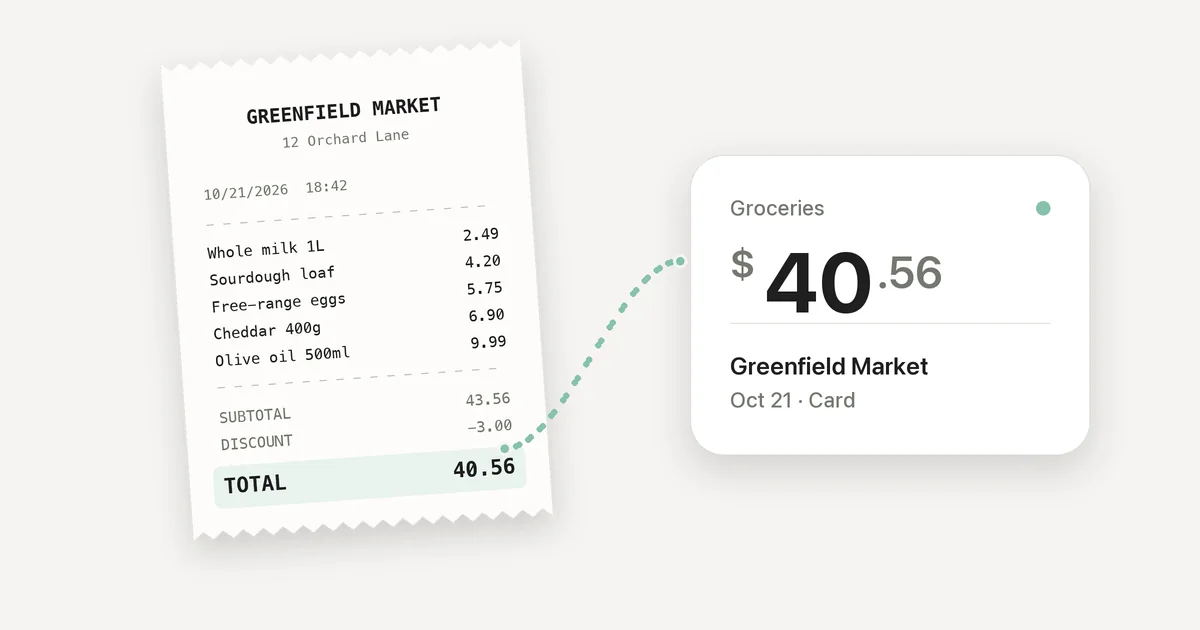
A receipt tells you what happened at the register. It doesn't necessarily tell you what happened to your budget.
You can photograph every receipt you get and still have no easy answer to a simple question: how much did I spend on groceries this month? The useful step is turning the receipt into an expense you can find, categorize and count.
A receipt photo is only the starting point
A camera can save the paper. An expense tracker needs a few details from it: the total, the shop and the date. A category makes the entry useful when you look back at the month.
Those details are often spread across the receipt. The total may be near the bottom, a discount may change it, and the date may be printed in a format you don't usually use. That is why a scan should fill in a draft, not silently add a transaction to your history.
Before saving, check the amount first. Is it the final amount you paid, after discounts? Then check the date, shop and category. If you split the purchase with someone or bought things for different purposes, one receipt may not be the one expense you want to record.
Scan a receipt with Walti
On a supported iPhone, open Walti and start a new expense. Tap the scan icon, then photograph a receipt or choose an image from Photos. Walti reads the receipt and fills in what it can, including the amount, shop and date. It can also suggest a category. Review the form, make any changes you need and tap Save.
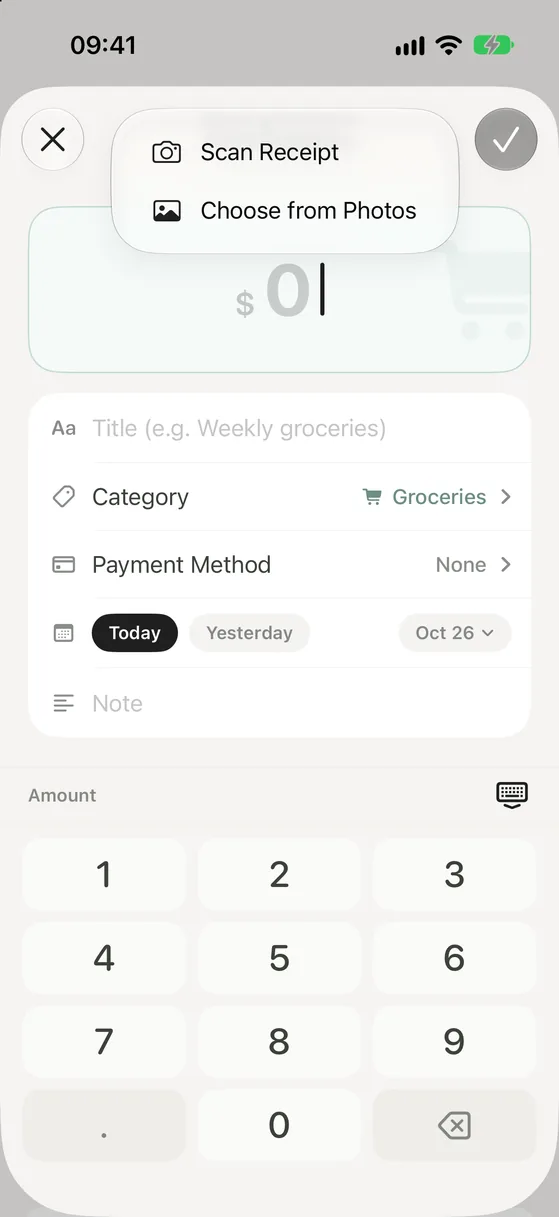
The important part is that you decide what gets saved. A faint total or unusual layout can be misread. If Walti cannot confidently read a detail, you can enter it yourself. Scanning removes typing; it doesn't remove the need for a quick look.
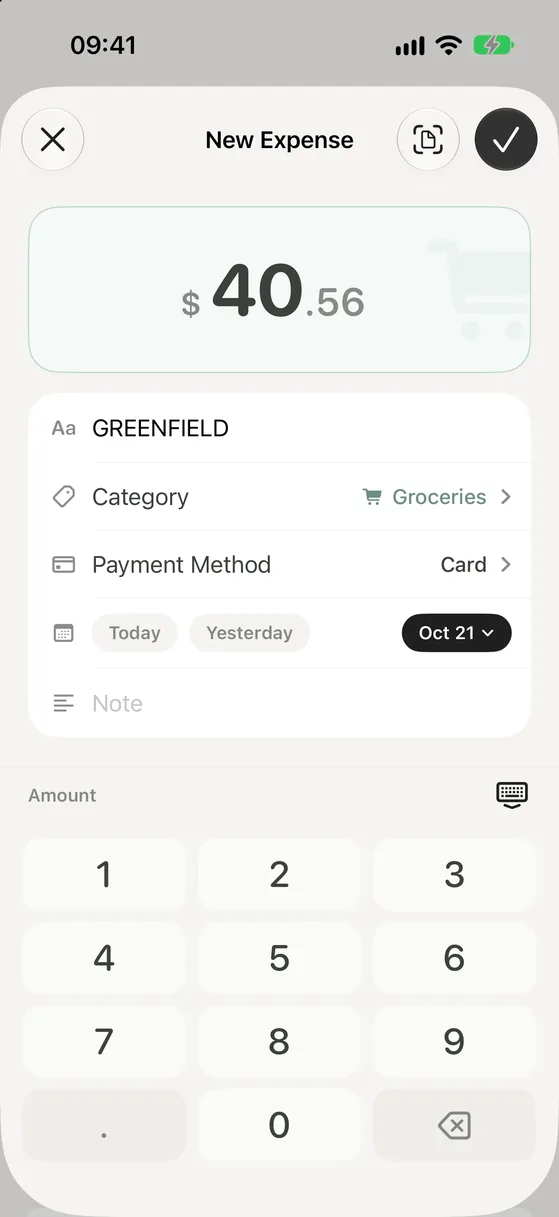
Walti reads the image on your iPhone. It does not upload or keep the receipt photo. Only the expense details you save remain in the app. If you need the original receipt for a return, reimbursement or tax records, keep a separate copy yourself. Walti is an expense tracker, not a receipt archive.
What you need before scanning
Walti's receipt scanning requires iOS 26 or later, an iPhone that supports Apple Intelligence, Apple Intelligence turned on, and a Walti app language supported by the on-device model. The scan button appears only when the feature is available on your device. Apple explains its device and language requirements here.
You can try three receipt scans for free. Unlimited scanning is included with Walti Premium, a one-time purchase. On an iPhone that cannot scan, you can still add expenses manually in a few taps; Walti itself runs on iOS 17 or later.
Make the receipt useful later
The best time to log an expense is while the purchase is still in front of you. Scan it, check the draft and save it before the receipt disappears into a pocket or bag. At the end of the month, those entries become a category breakdown, a spending trend and a clearer answer to where the money went.
You don't need a perfect archive of paper slips. You need a record you can actually use.